Connect Claude.ai or ChatGPT to Your Project Board (Remote MCP + OAuth)
How a remote MCP server with OAuth lets ChatGPT or Claude in the browser read and update your backlog, with no install and no API key to paste, and what to check before you click Allow.

Founder of FlowBoard · Full-stack developer & serial entrepreneur
Introduction
Until recently, connecting an AI assistant to a project board meant running something on your own machine. You installed an MCP server package, created an API key, pasted it into a config file, and restarted the client. That works well for Claude Code or Cursor on a developer's laptop. It does nothing for the product manager, founder or client lead who lives in ChatGPT or Claude in a browser tab and has never opened a terminal.
A remote MCP server with OAuth removes that gap. The assistant talks to a hosted URL instead of a local process, and access is granted the way you grant it to any other web app: you sign in, pick what it may touch, and click Allow. This article explains how that works, what it changes for a small team, and how to set it up with FlowBoard in about two minutes.
Local MCP vs Remote MCP, in One Paragraph Each
Local (stdio) MCP runs as a process next to the assistant. The client starts it, talks to it over standard input and output, and the process calls your tool's API with a key you supplied. It is the right shape for coding agents, because they already run on a machine and already have a config file. It is the wrong shape for a browser, which cannot start processes at all.
Remote MCP is the same protocol served over HTTP from a fixed URL. The assistant connects to the URL directly. Because nothing is installed, the remaining question is identity: the server has to know who is asking and what they are allowed to see. That is the job OAuth already does for every "Sign in with" button on the web, and the MCP specification uses it for exactly this.
What Actually Happens When You Click Allow
The flow looks like magic from the outside and is worth understanding, because it tells you what you are trusting.
- You give the assistant a server URL, for FlowBoard
https://flowboard.dev/mcp. - The assistant calls it, gets a 401, and reads the response header pointing at the server's published metadata. That metadata names the authorization server and the scopes it supports.
- The assistant registers itself as a client and opens a consent page in your browser, using PKCE so the code it receives is useless to anyone who intercepts it.
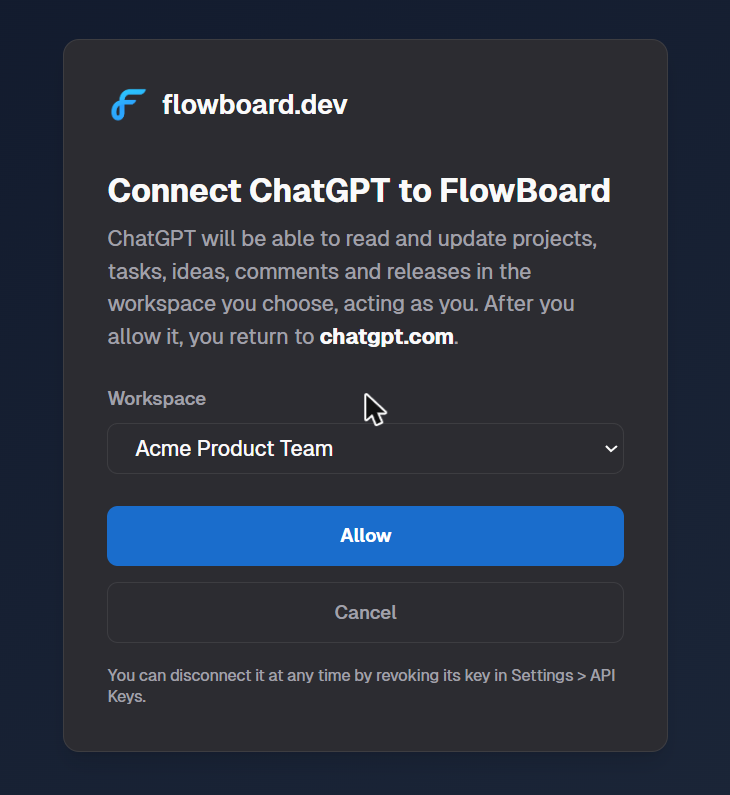
- You sign in to the tool, choose a workspace, and click Allow. The page sends you back to the assistant.
- The assistant exchanges the code for a token and from then on sends it with every call.
In FlowBoard, the token is an ordinary API key minted for you and named after the assistant, for example "ChatGPT". That design choice is deliberate: every endpoint already understands API keys, revoking one in Settings disconnects the assistant immediately, and connecting the same assistant again replaces its previous key instead of piling up old ones.
Setting It Up in ChatGPT
Your ChatGPT plan, or your ChatGPT workspace admin, has to allow custom MCP servers. If the option below is missing, that is the reason, not a FlowBoard problem.
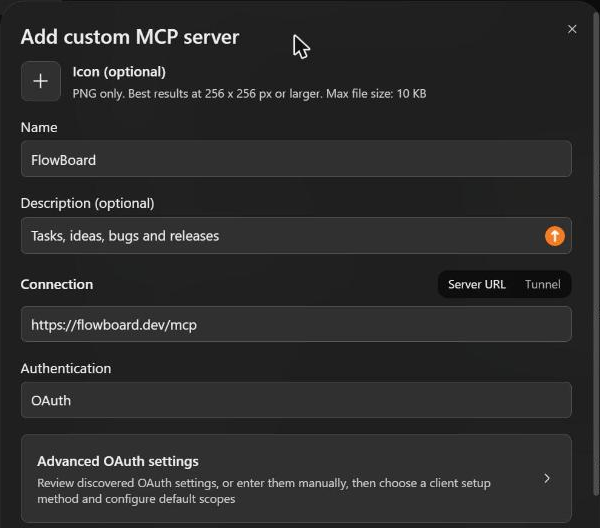
- Open Plugins in the sidebar, then Add and Add custom MCP server.
- Name it FlowBoard and set the server URL to
https://flowboard.dev/mcp. - Choose OAuth for authentication and leave the advanced OAuth settings alone: ChatGPT discovers them from the server.
- Create it, sign in on the FlowBoard page that opens, pick a workspace and click Allow.
Setting It Up in Claude
The steps are the same in Claude on the web: add a custom connector with the URL
https://flowboard.dev/mcp, then sign in and click Allow on the FlowBoard page. Menu
names in both assistants move around between releases, but the two inputs never change: the
URL, and OAuth as the authentication method.
If you also use Claude Code in a terminal, keep using the local package there. The hosted server exposes the same tools, so a prompt that works in one works in the other. The FlowBoard MCP server guide covers the local setup.
What to Check Before You Click Allow
Connecting an assistant is closer to adding a teammate than installing a plugin, so three checks are worth the ten seconds.
- Where you return to. The consent page shows the site you will be sent back to. It should be chatgpt.com or claude.ai. An "unverified" warning or a domain you do not recognise is a reason to cancel.
- Which workspace. A connection covers one workspace. If you run a workspace per client, connect the assistant to the one you are working in, not the one with everything.
- Who you are. The assistant acts as you. Its comments and changes are attributed to you, with your role's access. Only workspace owners and admins can connect one, which keeps a member from quietly wiring an assistant into a shared workspace.
What It Is Actually Good For
The value is not that a chatbot can create tasks. It is that the people who never open the board can now ask it questions in the tool they already use all day.
- "What is next on the backlog, and why?" The assistant reads the ordered list and the scoring inputs behind it, so the answer is the real priority rather than a guess.
- "What shipped this month?" It reads releases and their tasks, which turns a status email into a question you ask on Friday afternoon.
- "Log this as a bug." A client message pasted into ChatGPT becomes a bug on the bugs board with the reproduction steps intact, without anyone retyping it.
- "Is this idea already on the board?" It searches ideas before creating a duplicate, which matters more the more people submit them.
One rule carries over from the API unchanged: ideas are submissions, not work. An assistant cannot quietly start working an idea nobody accepted, because the server refuses it, exactly as it refuses a coding agent. The AI product owner pattern shows how review stays a human decision even when an assistant does the reading.
Frequently Asked Questions
What is a remote MCP server?
A remote MCP server is a Model Context Protocol server reachable at a URL over HTTP instead of running as a local process. Assistants that cannot run software on your machine, such as ChatGPT and Claude in a browser, can only use remote servers.
Do I need an API key to connect ChatGPT to FlowBoard?
No. The connection uses OAuth: you sign in to FlowBoard and approve access, and FlowBoard mints a key for the assistant behind the scenes. You never copy or paste a key.
How do I disconnect the assistant?
Each connection is an API key named after the assistant. Revoke it under Settings, Integrations, API Keys, and the assistant loses access immediately.
Can one connection see all my workspaces?
No. A connection is scoped to the one workspace you picked on the consent page. To use another workspace, connect again and pick that one.
Is the hosted server different from the npm package?
It serves the same tools: tasks, ideas, bugs, comments, releases and projects. Use the hosted URL for web assistants and the local package for coding agents on your machine.
Next Steps
Connect one assistant to one workspace and ask it the question you most often answer by hand, usually "where is X?". If the answer is right, you have removed a status request from your week. From there, agentic project management covers what to hand to agents next, and running several coding agents on one backlog covers the developer side.
Ready to Try FlowBoard?
Start managing your projects with continuous flow. No sprints, no bloat - just ship.
Get Started FreeKeep reading
FlowBoard MCP Server: Let AI Manage Your Projects
Connect Claude Code, Cursor, or any MCP-compatible AI tool directly to FlowBoard. Create tasks, search bugs, add comments, and manage releases - from your IDE.
AI AgentsAgentic Project Management: The Complete Guide for Dev Teams
Everything you need to know about running a dev team with AI agents, from task design to agent roles, workflow patterns, and the tools that make it work.
AI AgentsRunning Several Claude Code Agents on One Backlog Without Collisions
Two coding agents polling the same backlog will pick the same task. Here is why it happens, what an atomic claim fixes, and how to split work so parallel agents stay out of each other's way.
AI AgentsWe Let an AI Product Owner Triage Our Idea Backlog
An AI agent that reads every idea, hunts duplicates, and recommends accept, reject or rework, then waits for you to confirm. How it works and where it pays off.